Robots.txt Guide: How to Create and Test Your File
Learn how to create a safe robots.txt file, control search-engine crawling, add your sitemap, test important URLs, and avoid mistakes that can prevent valuable pages from being discovered.
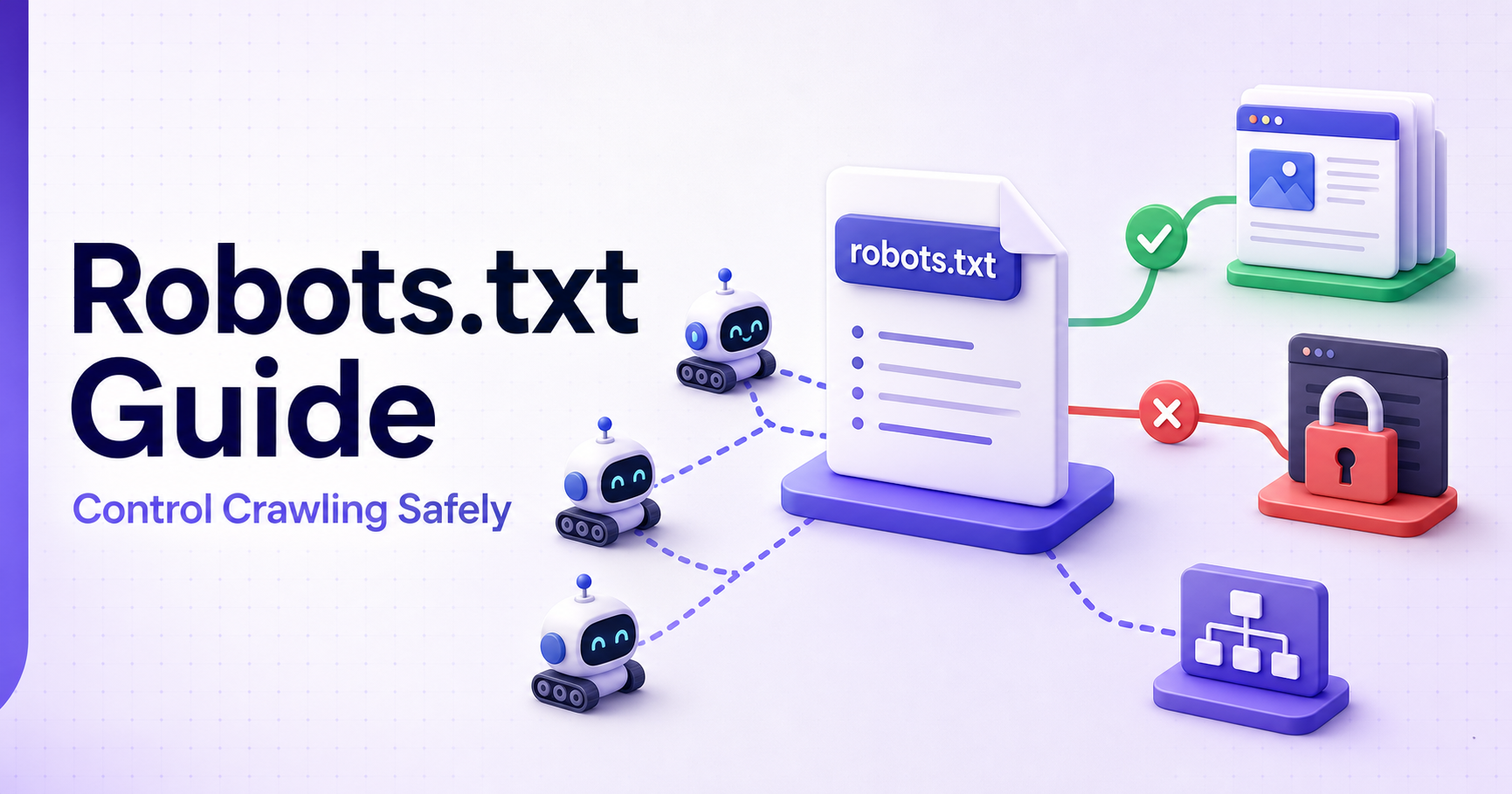
A robots.txt file tells search-engine crawlers which areas of your website they may access. A properly configured file can help crawlers focus on valuable pages, while one incorrect rule can accidentally block important content.
In this guide, you will learn how robots.txt works, how to create a safe file, which rules to use, and how to test everything before publishing it on your website.
What Is a Robots.txt File?
A robots.txt file is a plain-text file placed in the root directory of a website.
For SmartToolsNest, the file should be accessible at:
https://smarttoolsnest.com/robots.txt
Search-engine crawlers normally check this file before requesting other URLs from the website. It can contain instructions for all crawlers or separate rules for specific crawlers.
A basic robots.txt file for SmartToolsNest may look like this:
User-agent: *
Allow: /
Disallow: /admin/

Sitemap: https://smarttoolsnest.com/sitemap.xml
Here is what each instruction means:
User-agent: *applies the rules to all crawlers that support the protocol.Allow: /permits crawling across the public website.Disallow: /admin/asks crawlers not to access the administration area.Sitemap:tells crawlers where the XML sitemap is located.
What Is Robots.txt Used For?
The primary purpose of robots.txt is to manage crawler access and reduce unnecessary crawling.
You may use it to discourage crawlers from accessing:
Administration areas
Internal search-result pages
Temporary preview URLs
Duplicate filtered pages
Parameter-heavy URLs
Staging or testing sections
Other pages that provide no search value
Robots.txt can be particularly useful for large websites containing many duplicate, filtered, or automatically generated URLs.
Small websites can also use it to provide clear crawler instructions and specify the location of their XML sitemap.
Robots.txt Controls Crawling, Not Security
A Disallow rule does not make a page private.
The robots.txt file is publicly accessible, and compliant crawlers treat its rules as instructions rather than security restrictions. Anyone who knows a blocked URL may still open it, while some crawlers may ignore the rules entirely.
Private content should be protected using:
User authentication
Server-side authorization
Password protection
Appropriate file permissions
Never place passwords, customer records, confidential file locations, or other sensitive information inside robots.txt.
Robots.txt Does Not Guarantee Deindexing
Blocking a URL in robots.txt does not guarantee that it will disappear from search results.
A search engine may discover the URL through internal or external links without crawling its content. In that situation, the URL may still appear in search results with limited information.
To prevent a public page from being indexed, use a supported noindex meta tag or HTTP response header. The crawler must be allowed to access the page before it can see that instruction.
For private or confidential content, use password protection or proper authentication.
Google does not support adding a noindex instruction inside robots.txt.
How to Create a Robots.txt File
1. Create a plain-text file
Create a new plain-text file named exactly:
robots.txt
Avoid incorrect file names such as:
robot.txtrobots.htmlrobots.txt.htmlRobots.txt
You can quickly prepare the required rules with the SmartToolsNest Robots.txt Generator.
2. Add a user-agent rule
Use the following instruction when the same rules should apply to all supporting crawlers:
User-agent: *You can also create separate groups if certain rules should apply only to a particular crawler.
3. Allow public content
A website with no blocked public areas can use:
User-agent: *
Allow: /
This tells compliant crawlers that they may crawl the website.
4. Block unnecessary paths carefully
For example, SmartToolsNest can discourage crawlers from accessing its administration directory with:
Disallow: /admin/Be precise when entering paths. A broad rule may accidentally affect important public URLs.
5. Add the XML sitemap
Include the complete HTTPS URL of the SmartToolsNest XML sitemap:
Sitemap: https://smarttoolsnest.com/sitemap.xmlThe sitemap instruction can appear anywhere in the file. It does not need to be placed inside a particular user-agent group.
You can check the sitemap with the SmartToolsNest XML Sitemap Validator.
6. Upload the file to the website root
The completed file should be available at:
https://smarttoolsnest.com/robots.txt
A robots.txt file placed inside another directory will not control the entire website.
Useful Robots.txt Examples
Allow all crawlers
User-agent: *
Allow: /

Sitemap: https://smarttoolsnest.com/sitemap.xml
Block the admin directory
User-agent: *
Allow: /
Disallow: /admin/

Sitemap: https://smarttoolsnest.com/sitemap.xml
Block internal search-result pages
User-agent: *
Allow: /
Disallow: /search/
Disallow: /*?search=

Sitemap: https://smarttoolsnest.com/sitemap.xml
Before using rules containing wildcards or URL parameters, test them against important website URLs.
Block the entire website
User-agent: *
Disallow: /
Use this rule with extreme caution. It asks compliant crawlers not to crawl any page on the website.
It may be useful temporarily on a development website, but it can cause serious SEO problems if accidentally published on a live website.
Rules to Test Before Publishing
Check several representative URLs before publishing your robots.txt file.
Confirm that:
The SmartToolsNest homepage is allowed.
Important tool pages are allowed.
Tool-category pages are allowed.
Blog posts and blog categories are allowed.
CSS, JavaScript, images, and fonts are accessible.
Administration and unpublished preview routes are blocked when required.
No wildcard unintentionally blocks public tools.
The sitemap uses the correct HTTPS URL.
The sitemap returns a successful response.
The live robots.txt file returns an HTTP 200 response.
Do not test only one URL. Select examples from every important section of the website.
Use the SmartToolsNest Robots.txt Tester to check whether individual URLs are allowed or blocked by your rules.
Common Robots.txt Mistakes
Accidentally blocking the whole website
The following rule blocks crawling across the entire website:
User-agent: *
Disallow: /
This rule is sometimes added to a staging website and then accidentally transferred to production.
Review robots.txt whenever a website is launched, migrated, or moved from staging to production.
Blocking CSS and JavaScript files
Search engines may need CSS, JavaScript, images, and other resources to render and understand a page properly.
Avoid blocking essential assets unless you have a specific and tested reason.
Using robots.txt to protect private information
Robots.txt is publicly visible and does not enforce security.
Sensitive pages, private documents, and administration functions require authentication or server-level protection.
Blocking pages that contain noindex
A crawler generally needs access to a page before it can see its noindex instruction.
When robots.txt blocks the page, the crawler may never discover that indexing instruction. Allow crawling of the page so the supported noindex directive can be detected.
Adding blocked URLs to the sitemap
An XML sitemap should normally contain canonical URLs that you want search engines to crawl and index.
Adding a URL to the sitemap while blocking it in robots.txt sends conflicting signals.
Using incorrect paths
These instructions may produce different results:
Disallow: /admin
Disallow: /admin/
Review your actual URL structure and test each important pattern before publishing it.
Forgetting subdomains
A robots.txt file applies to the exact host where it is published.
For example, the robots.txt file on smarttoolsnest.com would not automatically control a separate subdomain such as app.smarttoolsnest.com.
Every relevant subdomain may require its own robots.txt file.
How to Test a Robots.txt File
After creating the file, open its public URL in your browser:
https://smarttoolsnest.com/robots.txt
Confirm that the file loads correctly and contains the latest instructions.
Next, test several URLs against the appropriate crawler:
Test the homepage.
Test an important tool page.
Test a tool-category page.
Test a blog post.
Test the administration URL.
Test CSS and JavaScript resources.
Check the XML sitemap URL.
Review the live file after deployment.
You can use the following SmartToolsNest tools during this process:
Robots.txt Generator — create a clean robots.txt file.
Robots.txt Tester — check how rules apply to individual URLs.
XML Sitemap Validator — verify that the sitemap is properly formatted.
A Simple Maintenance Routine
A robots.txt file should not be created once and then forgotten.
Review it after:
A website redesign
A domain or HTTPS migration
Changes to the URL structure
The addition of new filters or search parameters
CMS or framework changes
A staging-to-production deployment
The launch of a new website section
Changes to the XML sitemap location
You should also check it if important pages unexpectedly disappear from crawl reports or search visibility declines following a technical change.
Frequently Asked Questions
Does robots.txt improve search rankings?
Robots.txt does not directly improve search rankings. Its purpose is to guide crawler access.
A properly configured file can help crawlers avoid unnecessary URLs, but content quality, internal linking, relevance, website performance, and technical accessibility remain more important for rankings.
Does every website need a robots.txt file?
A website can operate without a robots.txt file, but having a simple and valid file is helpful.
Even if nothing needs to be blocked, the file can allow public crawling and provide the location of the XML sitemap.
Can robots.txt remove a page from Google?
No. Robots.txt is not a reliable method for removing a URL from Google.
A blocked URL may still be discovered through links and appear in search results. Use a supported noindex directive for a public page or password protection for private content.
Can I add noindex to robots.txt?
No. Google does not support the noindex directive inside robots.txt.
Add noindex through a robots meta tag or an HTTP response header. The crawler should be allowed to access the page so it can read the instruction.
Should I add the XML sitemap to robots.txt?
Yes. Adding the complete sitemap URL helps supporting crawlers locate it.
For SmartToolsNest, use:
Sitemap: https://smarttoolsnest.com/sitemap.xml
Can robots.txt protect confidential files?
No. Robots.txt is publicly accessible, and its rules are voluntary instructions for crawlers.
Protect confidential files using authentication, authorization, appropriate file permissions, or other server-side security measures.
Should images, CSS, and JavaScript be blocked?
Essential images, CSS, and JavaScript should generally remain accessible because search engines may need them to render and understand your pages.
Block a resource only when you have a clear and properly tested reason.
How often should robots.txt be updated?
There is no fixed update schedule.
Review it whenever the website structure, routes, crawler requirements, or sitemap location changes. It should also be checked during website launches and migrations.
Can different crawlers have different rules?
Yes. You can create separate user-agent groups for different crawlers.
However, only add crawler-specific instructions when they are genuinely required. Keeping the file simple reduces the risk of errors.
What happens if robots.txt is unavailable?
Crawler behavior can depend on the returned HTTP status and the search engine involved. Persistent server errors may temporarily affect crawling.
Keep the file publicly accessible, return a successful response, and monitor it following server or deployment changes.
Final Thoughts
A good robots.txt file is usually short, precise, and easy to understand. It should guide crawlers away from unnecessary URLs without blocking valuable pages or essential website resources.
Start with the simplest rules possible, add the correct SmartToolsNest sitemap URL, and test representative URLs before publishing.
Most importantly, remember that robots.txt manages crawling. It does not provide security and does not guarantee that a URL will be removed from search results.